Help:Upload and add image to the page: Difference between revisions
No edit summary |
|||
| (3 intermediate revisions by the same user not shown) | |||
| Line 1: | Line 1: | ||
This page explains how to upload an image to {{SITENAME}} and how to place it on a page. In short: | |||
# '''Upload''' the image on the [[Special:Upload]] page. Fill in the licence, author, source and AI disclosure. | |||
# '''Check''' the image's description page (<code>File:Filename.jpg</code>). | |||
# '''Insert''' the image into your page, for example with <code><nowiki>[[File:Filename.jpg|thumb|Caption]]</nowiki></code>. | |||
An image must be uploaded to the {{SITENAME}} database before it can be shown on a page. | |||
== Uploading an image == | == Uploading an image == | ||
Only '''logged-in''' users can upload images to {{SITENAME}}. | Only '''logged-in''' users can upload images to {{SITENAME}}. | ||
Allowed image types are <code>png</code>, <code>gif</code>, <code>jpg</code>, <code>jpeg</code> and <code>svg</code>. The file size must be less than 2 MB. | |||
After uploading, the image gets its own description page at <code>File:''Destination filename''</code>. The licence, author, source and other details are shown there. | |||
=== Uploading the first version of an image === | |||
Open the [[Special:Upload]] page. You can find the link under <code>Wiki tools</code> → <code>Upload file</code>, or under <code>Navigation</code> → <code>Special pages</code> → <code>Media reports and uploads</code> → <code>Upload file</code>. Both <code>Wiki tools</code> and <code>Navigation</code> are in the upper left part of each page, but their exact position depends on the skin. | |||
Fill in the form: | |||
{| class="wikitable" | |||
! Field !! What to enter !! Required | |||
|- | |||
| '''Source file''' || Choose the image file on your device. || Yes | |||
|- | |||
| '''Destination filename''' || The name the image will have on the wiki. Use a short, descriptive name and keep the correct extension, for example ''MBES-patch-test.jpg'', not a camera default like ''IMG_1234.jpg''. The name cannot be changed later without moving the file, so check it before uploading. || Yes | |||
|- | |||
| '''Summary''' || A short description of the image: what it shows and where it comes from. It becomes the text of the file's description page. || Yes | |||
|- | |||
| '''Licensing''' || Choose a licence from the list. See [[#Licensing and AI|Licensing and AI]]. || Yes | |||
|- | |||
| '''Title''' || Title of the image. If you are not the author, use the original title. || For third-party work | |||
|- | |||
| '''Author''' || Author of the original image. || For third-party work | |||
|- | |||
| '''Source''' || Where the image comes from (link or publication), or "own work" if you are the author. || Yes | |||
|- | |||
| '''Date''' || Date the image was created or, for third-party work, the date you accessed it. || Yes | |||
|- | |||
| '''AI disclosure''' || Choose the option that describes how the image was made. See [[#AI disclosure|AI disclosure]]. || Yes | |||
|} | |||
Then click the upload button. If the wiki shows a warning (for example, that a file with this name already exists), read it before choosing to ignore it. Never overwrite another user's image with a different image. Choose a different destination filename instead. | |||
==== Own work ==== | |||
If you are the author of the image (for example, a photo you took or a figure you drew), you choose the licence yourself from the [[#Licenses in SurveyWiki|list below]]. Enter "own work" as the source and your name as the author. | |||
Before you choose, check that you are free to publish the image. Images made as part of a project for a client or employer may not be yours to license. If they contain confidential data, use the internal-use licence and place them only on restricted pages. | |||
==== Third-party work ==== | |||
You can upload an image made by somebody else only if: | |||
* it is published under one of the licences on the [[#Licenses in SurveyWiki|list]] (for example, a Creative Commons image), or | |||
* it is in the public domain (choose <code>CC0 1.0 - Public domain</code> and say in the ''Source'' field why it is public domain), or | |||
* you have the rights holder's permission to publish it on {{SITENAME}}. Choose the licence that matches that permission. | |||
Do '''not''' upload images copied from websites, search results, reports or presentations without a clear licence or permission. | |||
Always give the full credit. Four details must be filled in for third-party work: '''T'''itle, '''A'''uthor, '''S'''ource and '''L'''icence. Most Creative Commons licences require this credit, and it also lets other users check where the image came from. If one of these details is missing, the image may be deleted. | |||
Some licences have extra conditions. For example, with ''NoDerivatives'' do not edit the image (crop, retouch, annotate), and with ''ShareAlike'' your use must be under the same licence. Read the licence page before you upload. | |||
=== Uploading a new version of an image === | |||
You can replace an image with an improved version, for example a higher resolution file, a corrected crop or a fixed colour balance. To do this: | |||
# Open the image's description page (<code>File:Filename.jpg</code>), for example by clicking the image on a page. | |||
# In the <code>File history</code> section, click '''Upload a new version of this file'''. | |||
# Choose the new file, write in ''Summary'' what you changed, and click the upload button. | |||
The new version keeps the same filename, so it replaces the old image on all pages where it is used. Older versions stay in the file history and can be restored from there. | |||
Upload a new version '''only''' if it is the same image, with the same title, author and licence as the first version. If it is a different image, upload it as a new file under a different name. | |||
To correct the details of an existing image (licence, author, source), edit its description page. | |||
== Licensing and AI == | |||
Every uploaded image must have a licence and an AI disclosure. Both are shown on the image's description page. | |||
=== Licenses in {{SITENAME}} === | |||
{{SITENAME}} allows several licences when uploading images: | |||
* [[Project:License-cc0-1.0|CC0 1.0 - Public domain]] | |||
* [[Project:License-cc-by-4.0|CC Attribution]] | |||
* [[Project:License-cc-by-sa-4.0|CC Attribution ShareAlike]] | |||
* [[Project:License-cc-by-nd-4.0|CC Attribution NoDerivatives]] | |||
* [[Project:License-cc-by-nc-4.0|CC Attribution NonCommercial]] | |||
* [[Project:License-cc-by-nc-sa-4.0|CC Attribution NonCommercial ShareAlike]] | |||
* [[Project:License-cc-by-nc-nd-4.0|CC Attribution NonCommercial NoDerivatives]] | |||
* [[Project:License-internal|For internal use only - only on pages in Internal and Admin namespaces]] | |||
* [[Project:License-trademark|Trademark - displayed under holder's usage policy]] | |||
=== AI disclosure === | |||
Choose the option that describes how the image was made: | |||
* ''{{MediaWiki:SurveyWiki-AI-none}}'' | |||
* ''{{MediaWiki:SurveyWiki-AI-generated}}'' | |||
* ''{{MediaWiki:SurveyWiki-AI-assisted}}'' | |||
If you are not sure, then do not upload. | |||
== Adding the image to a page == | |||
Once the image is uploaded, edit the page where you want it and add a link with the <code>File:</code> prefix: | |||
<pre> | |||
[[File:Filename.jpg|option|option|caption]] | |||
</pre> | |||
The options can be given in any order. The caption, if any, goes last. Typical options: | |||
{| class="wikitable" | |||
! Option !! Effect | |||
|- | |||
| <code>thumb</code> || Thumbnail with a frame and a caption, floating to the right (the usual choice). | |||
|- | |||
| <code>frameless</code> || Thumbnail without a frame or caption. | |||
|- | |||
| <code>frame</code> || Full-size image in a frame, with a caption. | |||
|- | |||
| <code>border</code> || Thin border around the image. | |||
|- | |||
| <code>200px</code> || Width in pixels (use <code>200x100px</code> to limit both width and height). | |||
|- | |||
| <code>left</code>, <code>right</code>, <code>center</code>, <code>none</code> || Position of the image on the page. | |||
|- | |||
| <code>alt=Text</code> || Alternative text for people who cannot see the image (screen readers). Describe what the image shows. | |||
|- | |||
| <code>link=</code> || An empty value makes the image not clickable. | |||
|} | |||
=== Examples === | |||
The examples use a test image. | |||
'''Thumbnail with a caption''' | |||
<pre> | |||
[[File:Hydrangea macrophylla.jpeg|thumb|alt=Hydrangea macrophylla|A thumbnail with a caption]] | |||
</pre> | |||
Result: | |||
[[File:Hydrangea macrophylla.jpeg|thumb|alt=Hydrangea macrophylla|A thumbnail with a caption]] | |||
<div style="clear:both"></div> | |||
'''Fixed width, centred''' | |||
<pre> | |||
[[File:Hydrangea macrophylla.jpeg|thumb|center|150px|A centred image, 150 pixels wide]] | |||
</pre> | |||
Result: | |||
[[File:Hydrangea macrophylla.jpeg|thumb|center|150px|A centred image, 150 pixels wide]] | |||
<div style="clear:both"></div> | |||
'''Left-aligned, text wraps around it''' | |||
<pre> | |||
[[File:Hydrangea macrophylla.jpeg|thumb|left|150px|Left-aligned image]] | |||
Lorem ipsum dolor sit amet, consectetur adipiscing elit, sed do eiusmod tempor incididunt ut labore et dolore magna aliqua. | |||
</pre> | |||
Result: | |||
[[File:Hydrangea macrophylla.jpeg|thumb|left|150px|Left-aligned image]] | |||
Lorem ipsum dolor sit amet, consectetur adipiscing elit, sed do eiusmod tempor incididunt ut labore et dolore magna aliqua. | |||
<div style="clear:both"></div> | |||
'''Several images in a row''' | |||
<pre> | |||
<gallery> | |||
File:Hydrangea macrophylla.jpeg|First image | |||
File:Hydrangea macrophylla.jpeg|Second image | |||
</gallery> | |||
</pre> | |||
Result: | |||
<gallery> | |||
File:Hydrangea macrophylla.jpeg|First image | |||
File:Hydrangea macrophylla.jpeg|Second image | |||
</gallery> | |||
=== | === Other ways to link to an image === | ||
{| class="wikitable" | |||
! You type !! You get | |||
|- | |||
| <code><nowiki>[[:File:Hydrangea macrophylla.jpeg]]</nowiki></code> || A text link to the image's description page (note the colon at the start). | |||
|- | |||
| <code><nowiki>[[Media:Hydrangea macrophylla.jpeg]]</nowiki></code> || A text link directly to the image file. | |||
|} | |||
== | == Troubleshooting == | ||
{| class="wikitable" | |||
! Problem !! Solution | |||
|- | |||
| There is no ''Upload file'' link || You are not logged in. Log in first. | |||
|- | |||
| "The file is too big" || Reduce the image size or resolution to below 2 MB. | |||
|- | |||
| "This file type is not allowed" || Convert the image to <code>png</code>, <code>jpg</code>, <code>gif</code> or <code>svg</code>. | |||
|- | |||
| "A file with this name already exists" || Choose another destination filename, unless you are uploading a new version of the same image. | |||
|- | |||
| The image shows as a red link || The filename in the page does not match the uploaded file. Check spelling and capitalisation. | |||
|} | |||
Latest revision as of 12:01, 1 November 2026
This page explains how to upload an image to SurveyWiki and how to place it on a page. In short:
- Upload the image on the Special:Upload page. Fill in the licence, author, source and AI disclosure.
- Check the image's description page (
File:Filename.jpg). - Insert the image into your page, for example with
[[File:Filename.jpg|thumb|Caption]].
An image must be uploaded to the SurveyWiki database before it can be shown on a page.
Uploading an image
Only logged-in users can upload images to SurveyWiki.
Allowed image types are png, gif, jpg, jpeg and svg. The file size must be less than 2 MB.
After uploading, the image gets its own description page at File:Destination filename. The licence, author, source and other details are shown there.
Uploading the first version of an image
Open the Special:Upload page. You can find the link under Wiki tools → Upload file, or under Navigation → Special pages → Media reports and uploads → Upload file. Both Wiki tools and Navigation are in the upper left part of each page, but their exact position depends on the skin.
Fill in the form:
| Field | What to enter | Required |
|---|---|---|
| Source file | Choose the image file on your device. | Yes |
| Destination filename | The name the image will have on the wiki. Use a short, descriptive name and keep the correct extension, for example MBES-patch-test.jpg, not a camera default like IMG_1234.jpg. The name cannot be changed later without moving the file, so check it before uploading. | Yes |
| Summary | A short description of the image: what it shows and where it comes from. It becomes the text of the file's description page. | Yes |
| Licensing | Choose a licence from the list. See Licensing and AI. | Yes |
| Title | Title of the image. If you are not the author, use the original title. | For third-party work |
| Author | Author of the original image. | For third-party work |
| Source | Where the image comes from (link or publication), or "own work" if you are the author. | Yes |
| Date | Date the image was created or, for third-party work, the date you accessed it. | Yes |
| AI disclosure | Choose the option that describes how the image was made. See AI disclosure. | Yes |
Then click the upload button. If the wiki shows a warning (for example, that a file with this name already exists), read it before choosing to ignore it. Never overwrite another user's image with a different image. Choose a different destination filename instead.
Own work
If you are the author of the image (for example, a photo you took or a figure you drew), you choose the licence yourself from the list below. Enter "own work" as the source and your name as the author.
Before you choose, check that you are free to publish the image. Images made as part of a project for a client or employer may not be yours to license. If they contain confidential data, use the internal-use licence and place them only on restricted pages.
Third-party work
You can upload an image made by somebody else only if:
- it is published under one of the licences on the list (for example, a Creative Commons image), or
- it is in the public domain (choose
CC0 1.0 - Public domainand say in the Source field why it is public domain), or - you have the rights holder's permission to publish it on SurveyWiki. Choose the licence that matches that permission.
Do not upload images copied from websites, search results, reports or presentations without a clear licence or permission.
Always give the full credit. Four details must be filled in for third-party work: Title, Author, Source and Licence. Most Creative Commons licences require this credit, and it also lets other users check where the image came from. If one of these details is missing, the image may be deleted.
Some licences have extra conditions. For example, with NoDerivatives do not edit the image (crop, retouch, annotate), and with ShareAlike your use must be under the same licence. Read the licence page before you upload.
Uploading a new version of an image
You can replace an image with an improved version, for example a higher resolution file, a corrected crop or a fixed colour balance. To do this:
- Open the image's description page (
File:Filename.jpg), for example by clicking the image on a page. - In the
File historysection, click Upload a new version of this file. - Choose the new file, write in Summary what you changed, and click the upload button.
The new version keeps the same filename, so it replaces the old image on all pages where it is used. Older versions stay in the file history and can be restored from there.
Upload a new version only if it is the same image, with the same title, author and licence as the first version. If it is a different image, upload it as a new file under a different name.
To correct the details of an existing image (licence, author, source), edit its description page.
Licensing and AI
Every uploaded image must have a licence and an AI disclosure. Both are shown on the image's description page.
Licenses in SurveyWiki
SurveyWiki allows several licences when uploading images:
- CC0 1.0 - Public domain
- CC Attribution
- CC Attribution ShareAlike
- CC Attribution NoDerivatives
- CC Attribution NonCommercial
- CC Attribution NonCommercial ShareAlike
- CC Attribution NonCommercial NoDerivatives
- For internal use only - only on pages in Internal and Admin namespaces
- Trademark - displayed under holder's usage policy
AI disclosure
Choose the option that describes how the image was made:
- Not AI-generated
- AI-generated
- AI-assisted
If you are not sure, then do not upload.
Adding the image to a page
Once the image is uploaded, edit the page where you want it and add a link with the File: prefix:
[[File:Filename.jpg|option|option|caption]]
The options can be given in any order. The caption, if any, goes last. Typical options:
| Option | Effect |
|---|---|
thumb |
Thumbnail with a frame and a caption, floating to the right (the usual choice). |
frameless |
Thumbnail without a frame or caption. |
frame |
Full-size image in a frame, with a caption. |
border |
Thin border around the image. |
200px |
Width in pixels (use 200x100px to limit both width and height).
|
left, right, center, none |
Position of the image on the page. |
alt=Text |
Alternative text for people who cannot see the image (screen readers). Describe what the image shows. |
link= |
An empty value makes the image not clickable. |
Examples
The examples use a test image.
Thumbnail with a caption
[[File:Hydrangea macrophylla.jpeg|thumb|alt=Hydrangea macrophylla|A thumbnail with a caption]]
Result:

Fixed width, centred
[[File:Hydrangea macrophylla.jpeg|thumb|center|150px|A centred image, 150 pixels wide]]
Result:
Left-aligned, text wraps around it
[[File:Hydrangea macrophylla.jpeg|thumb|left|150px|Left-aligned image]]
Lorem ipsum dolor sit amet, consectetur adipiscing elit, sed do eiusmod tempor incididunt ut labore et dolore magna aliqua.
Result:
Lorem ipsum dolor sit amet, consectetur adipiscing elit, sed do eiusmod tempor incididunt ut labore et dolore magna aliqua.
Several images in a row
<gallery>
File:Hydrangea macrophylla.jpeg|First image
File:Hydrangea macrophylla.jpeg|Second image
</gallery>
Result:
-
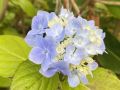 First image
-
Second image
Other ways to link to an image
| You type | You get |
|---|---|
[[:File:Hydrangea macrophylla.jpeg]] |
A text link to the image's description page (note the colon at the start). |
[[Media:Hydrangea macrophylla.jpeg]] |
A text link directly to the image file. |
Troubleshooting
| Problem | Solution |
|---|---|
| There is no Upload file link | You are not logged in. Log in first. |
| "The file is too big" | Reduce the image size or resolution to below 2 MB. |
| "This file type is not allowed" | Convert the image to png, jpg, gif or svg.
|
| "A file with this name already exists" | Choose another destination filename, unless you are uploading a new version of the same image. |
| The image shows as a red link | The filename in the page does not match the uploaded file. Check spelling and capitalisation. |


